ADDING A QUIZ
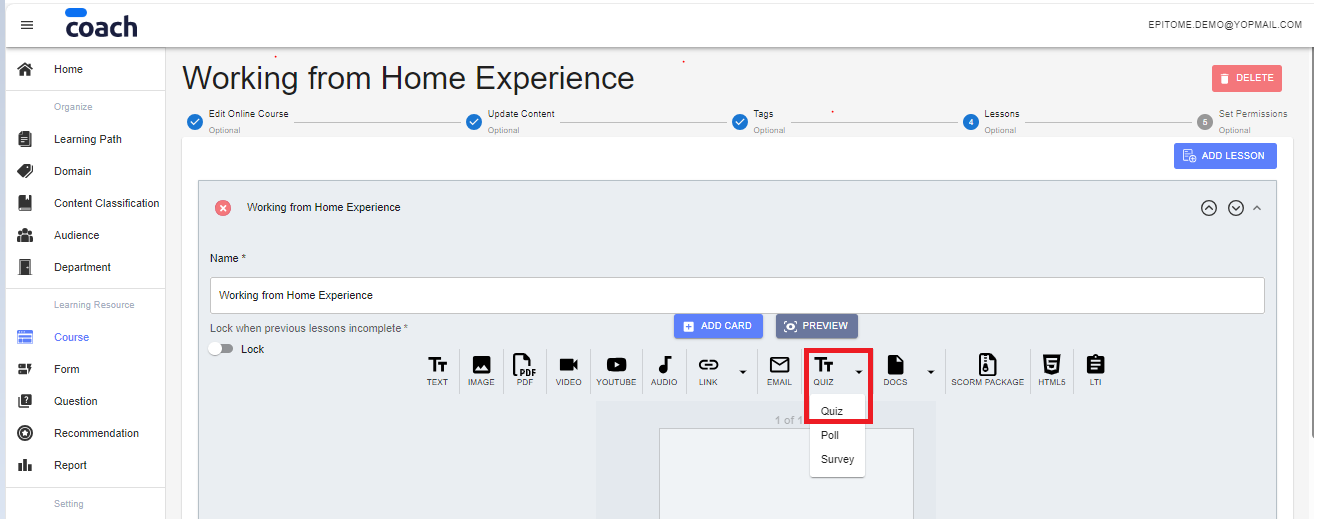
A quiz can be added to your course from the Coach Builder website during course creation.
Coach Panel Main Menu (left side of the screen) > Course > Create New
Please fill in all the details accordingly to the flow as per below (Compulsory * must be filled in order to proceed with (Save & Continue):
1. Edit Online Course
2. Update Content
3. Tags
4. Lessons > Add Lesson > QUIZ (please select the quiz that has been created from the Quiz forms list).
5. Set Permissions
In order to add a quiz to a course, a quiz (Multiple Choice Question(MCQ), Sorting Question, Slider Question, Open Ended Question, Radio Buttons Questions, Likert Questions) must be created from the Question, and a set of questions needs to be created as a Form in order to be added to the course.
QUESTION
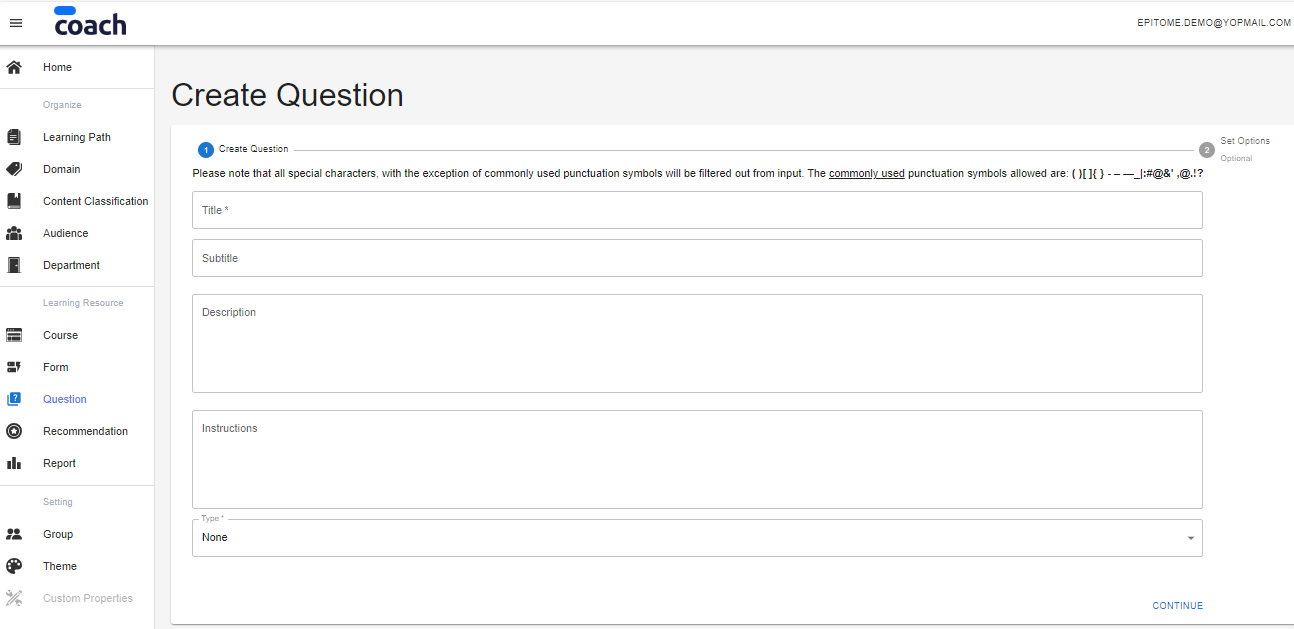
Coach Panel Main Menu (left side of the screen) > Question > Create New
Please fill in all the details accordingly to the flow as per below (Compulsory * must be filled in order to proceed with (Save & Continue):
1. Title
2. Subtitle
3. Description
4. Instructions
5. Type (MCQ, Sorting, Slider, Radio, Open Ended, Likert) > Continue
6. Click the add button (create the quiz accordingly to the type selected)
7. Click Save
A set of questions (MCQ, Sorting, Slider, Radio, Open-ended, Likert) needs to be created as a Form in order for it to be added to the course.

FORM
Coach Panel Main Menu (left side of the screen) > Form > Create New
Please fill in all the details accordingly to the flow as per below (Compulsory * must be filled in order to proceed with (Save & Continue):
1. Name
2. Description
3. Instruction
4. Type (Survey, Poll, Quiz) > Select Quiz
5. There is an option for the user to enable the shuffle question option and show an explanation for the Form creation > Save & Continue
6. Search for the question that has been created in the drop-down lists
7. Filters for all types of questions are enabled by default, all types of questions will be displayed once the keyword is typed in the search box.
The user may also just enable the type according to the question type that will be added, and the search box may just display the selected type of question.
8. Click Save
Was this article helpful?
That’s Great!
Thank you for your feedback
Sorry! We couldn't be helpful
Thank you for your feedback
Feedback sent
We appreciate your effort and will try to fix the article