Navigating the Coach Learner Web
1. Log in to the Coach Learner Web.
If this is your first login, select Claim OTP and proceed to complete the required steps.
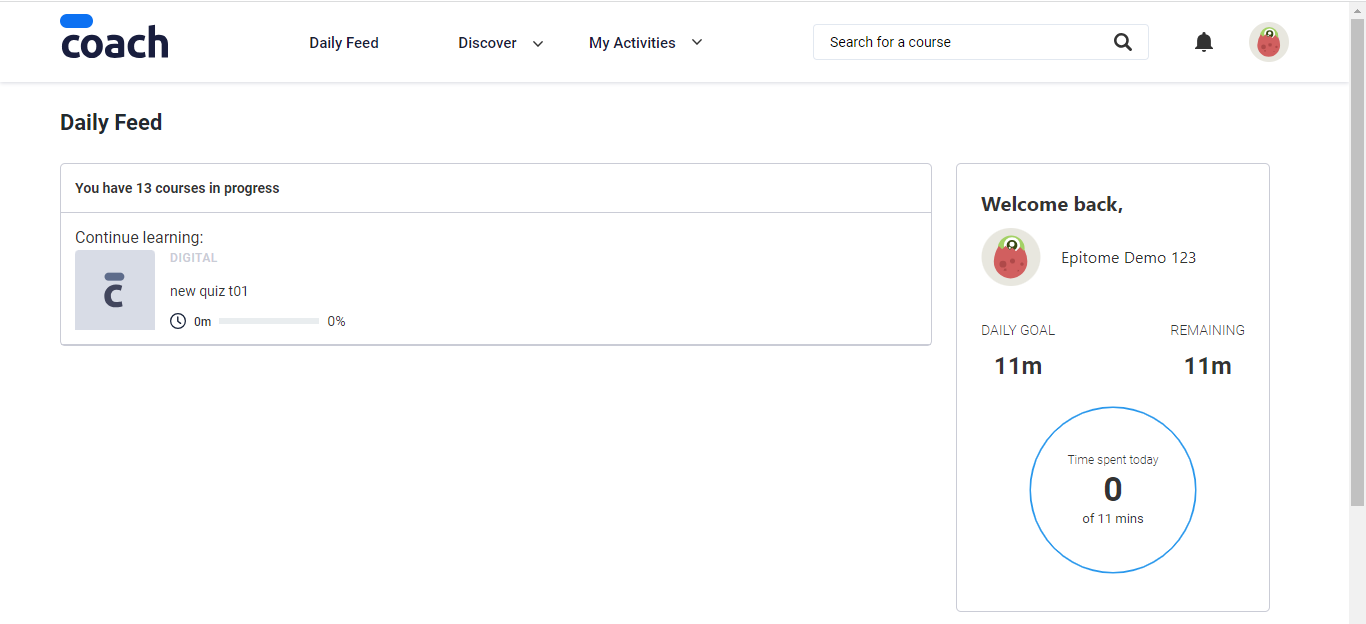
2. The Daily Feed view.
Upon login, you will be taken to the Daily Feed page where you can see your profile with the Learning Goal and the number of courses in progress.
3. Viewing and selecting available courses.
Click on Discover in the header menu to go to the Discover page. At the top of the page, there is the Learning Pathways carousel view and the Search bar where you can search specific courses.
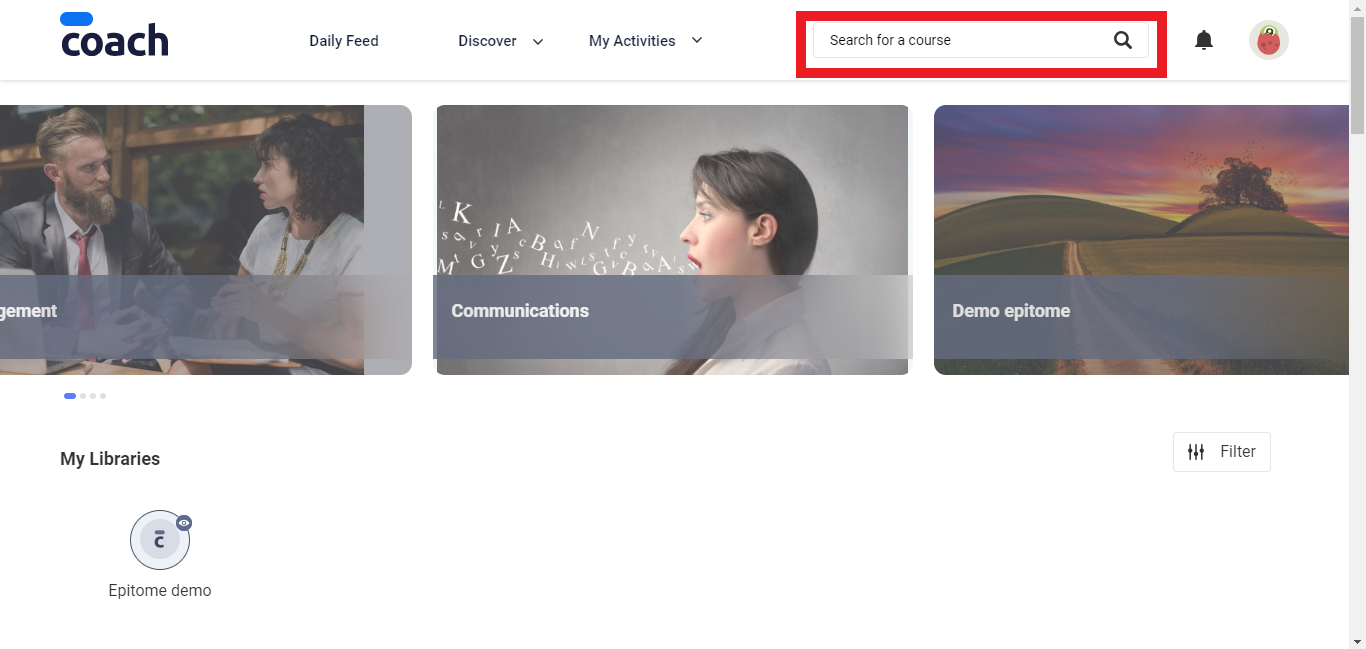
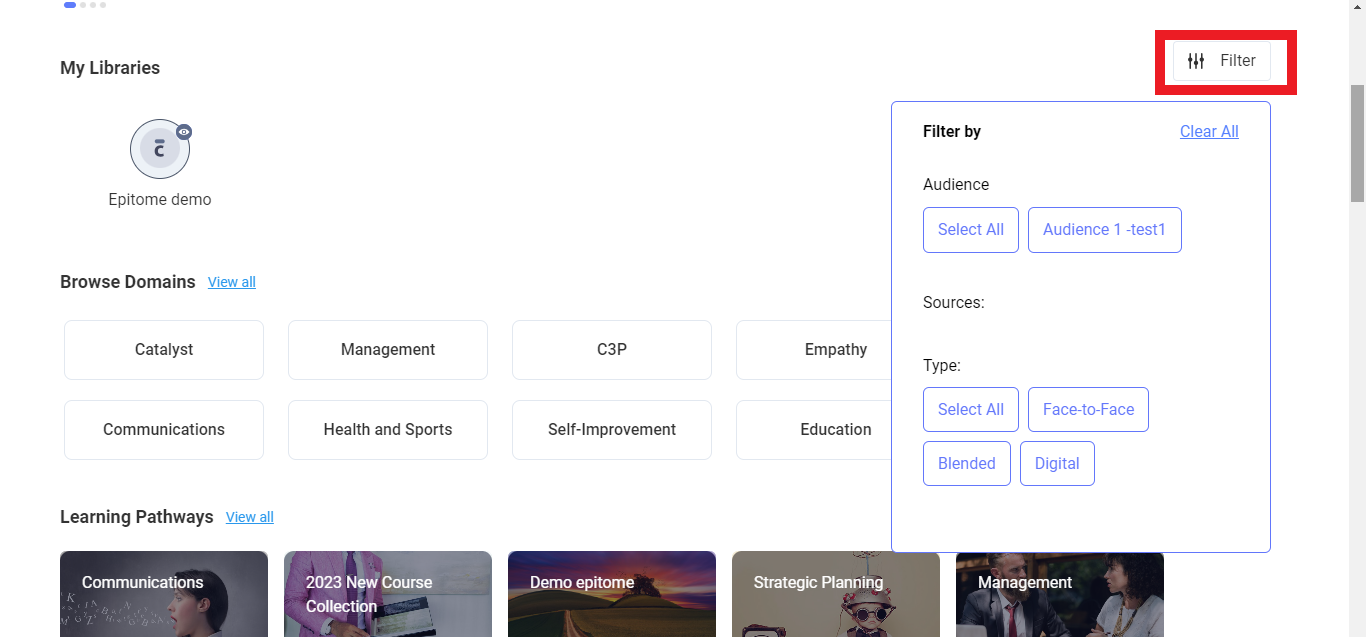
By scrolling down the Discover page, you can see courses organized in My Libraries, Browse Domains, and Learning Pathways.

To filter your view, click on the Filter button and use the available filtering options under the Audience, Sources, and Type roubrics.
4. Starting and completing a course.
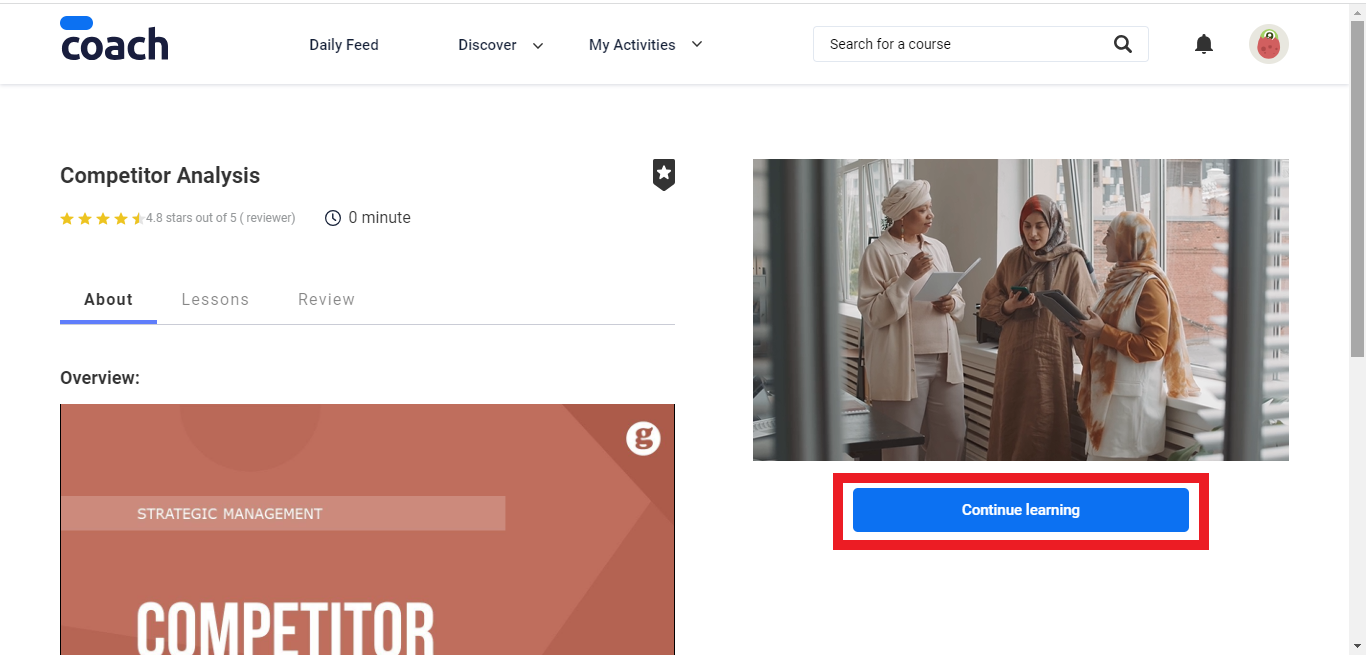
Select a course on the Discover page and click on the course icon. You will then be taken to the course page. The course page displays all the course information, including About (with thumbnail pictures and trailer videos, if available), Lessons (the navigable lesson list), and Review.
Click on the Start Learning (or, if you already started but didn’t complete this course, Continue Learning) button to start learning.
If you wish to take a break, click on the Exit button in the top right corner and select End Lesson in the pop-up menu.
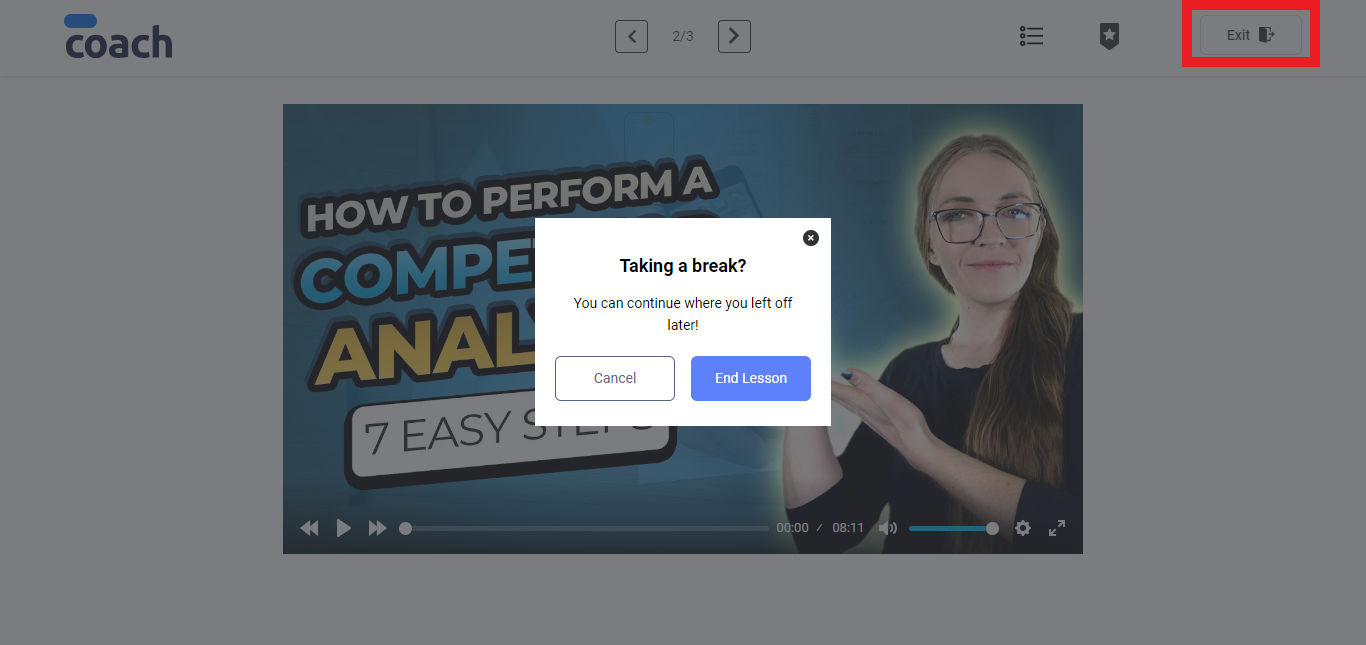
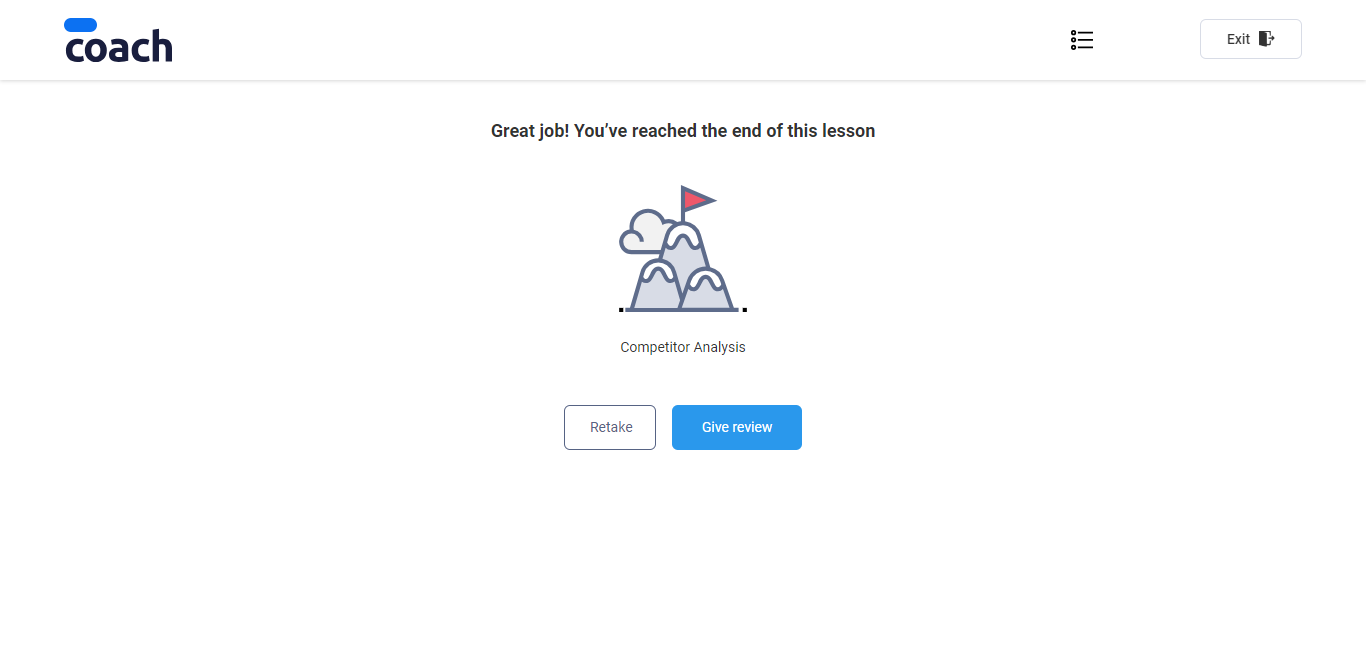
Once you have reached the end of the course, the course completion page appears. You can choose either to retake the course or to complete it by giving a review.
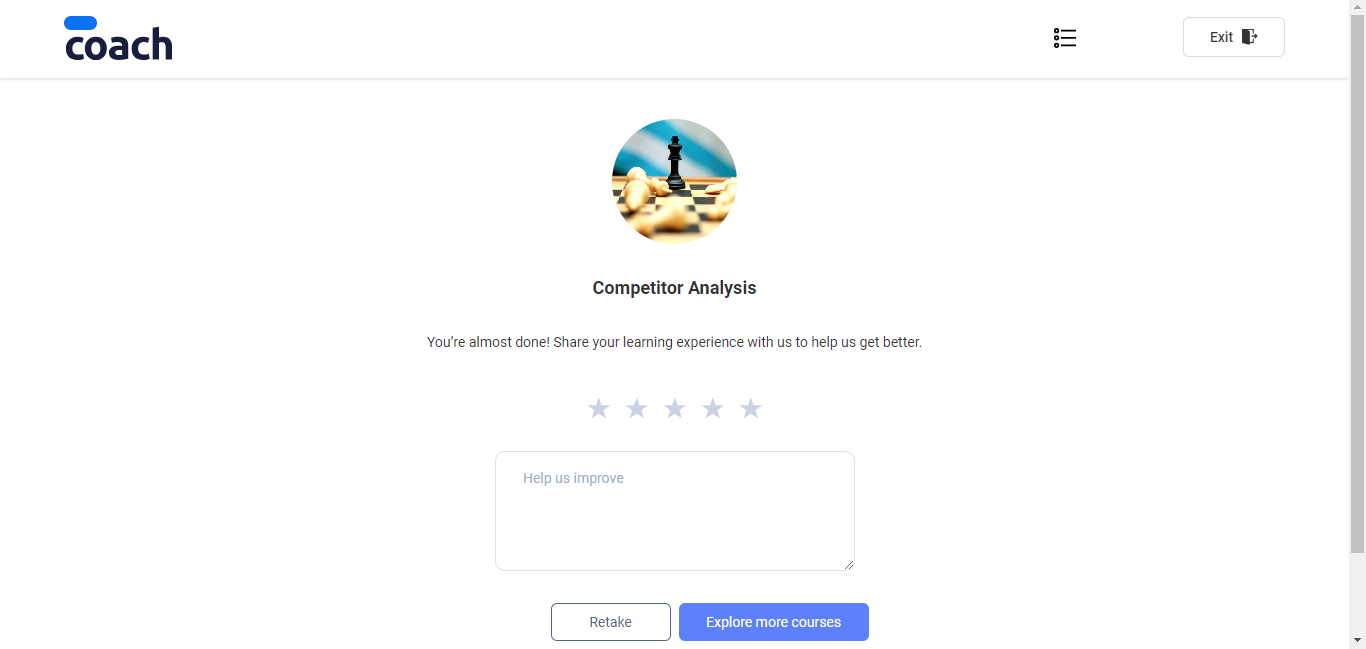
On the Review page, give a star rating to the completed course and leave a detailed review if you wish so. You can choose to retake the course or to explore more courses, in which case you will be taken back to the Discover page.
Was this article helpful?
That’s Great!
Thank you for your feedback
Sorry! We couldn't be helpful
Thank you for your feedback
Feedback sent
We appreciate your effort and will try to fix the article