Navigating the Coach Learner App
1. Logging in to the Coach Learner App
- Launch the Coach application.
- Select Claim OTP and proceed to complete the required steps.
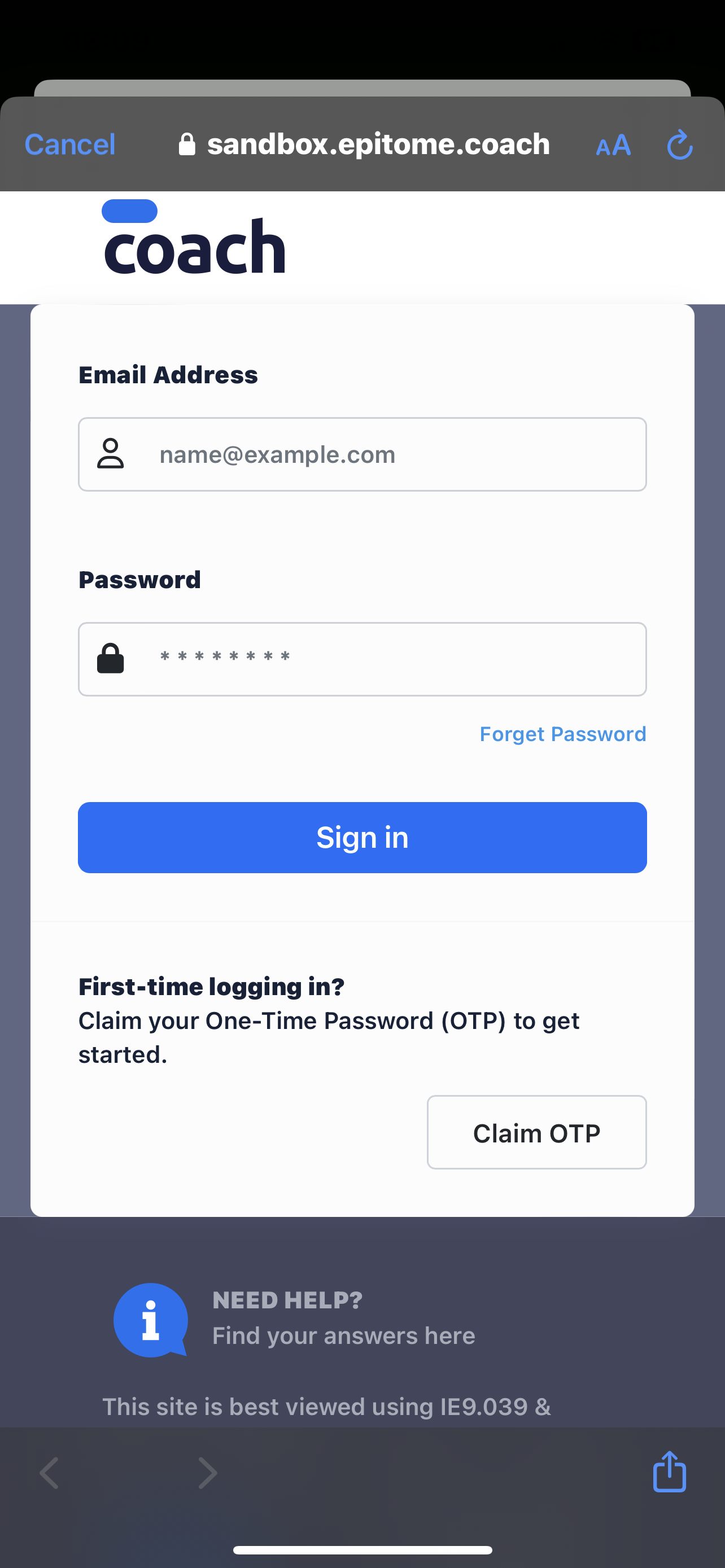
If you used to sign in to the application before, the device will prompt you as per below:
- The application will prompt a pop-up to sign into the app. "CoachMobileApp" wants to use "credential" to sign in
This allows the app and website to share information about you. "Cancel" or "Continue" - Select Continue.
- Users will be able to view the Coach app.
2. The Daily Feed view
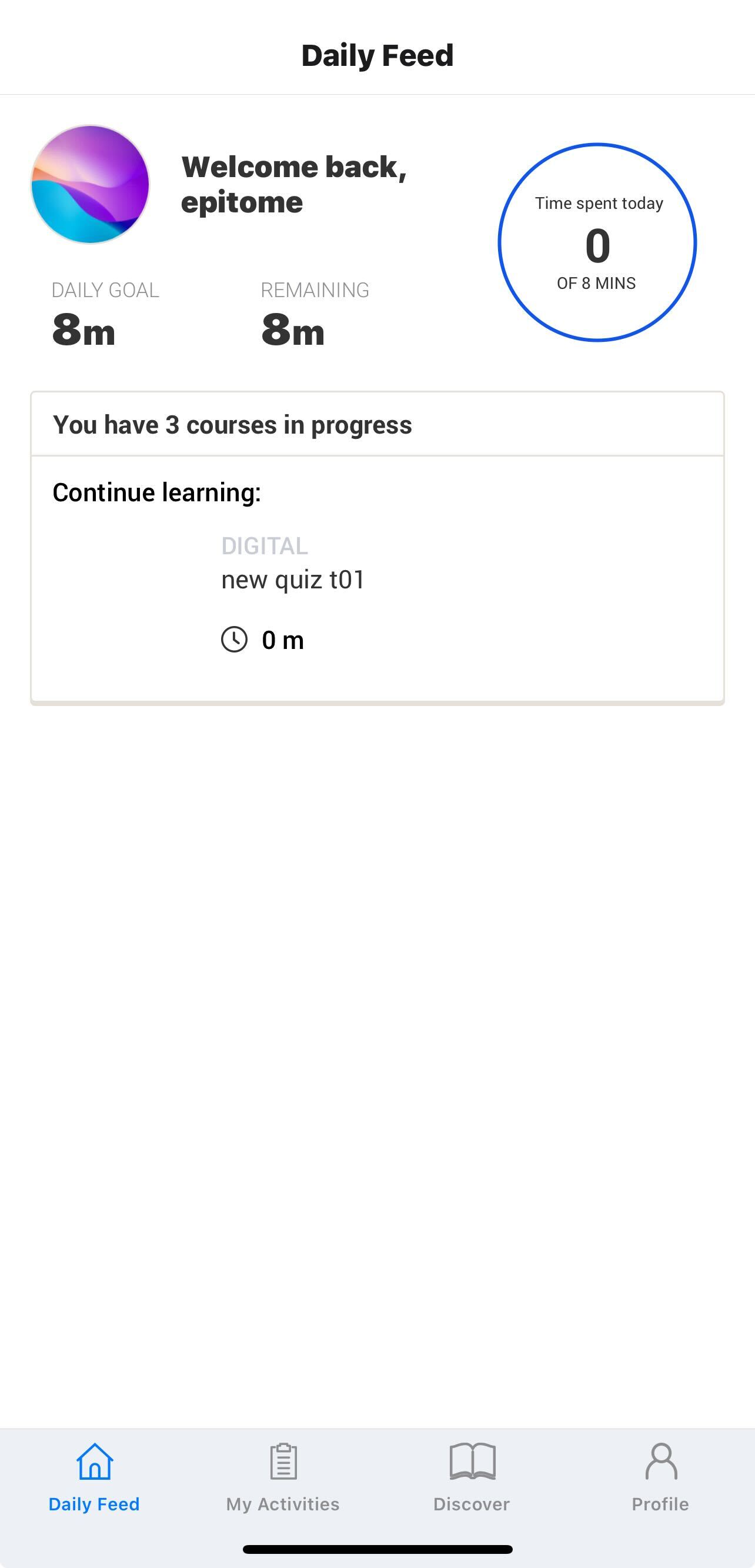
- The "Daily Feed" view page will display the "Daily Goal" (Minutes) and "Remaining" (Minutes) left for users to achieve the user's daily minutes goal as per the initial amount of time allocated when users individually set up the Coach profile.
- The non-completed in-progress courses will be displayed on the "Daily Feed" view page, where users may continue learning for all courses that have not been successfully completed at any time. Users will be able to check the latest progress of the non-completed courses.
- The time spent will also be displayed on the right side of the "Daily Feed" view page.
3. Viewing and selecting available courses
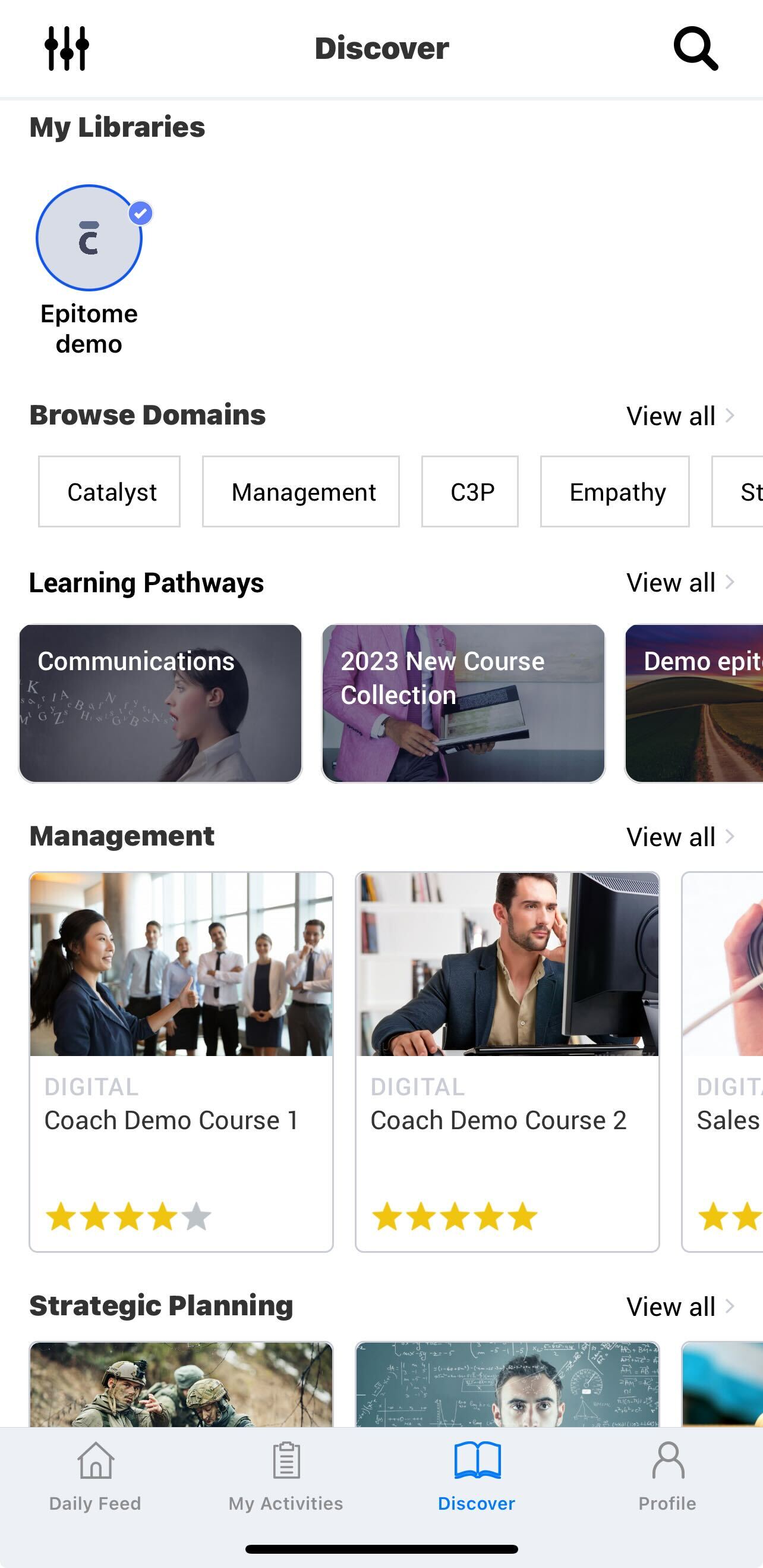
- Click on "Discover" in the bottom menu panel to go to the Discover page. At the top of the page, there is the Learning Pathways carousel view and the Search bar, where you can search for specific courses.

- By scrolling down the Discover page, you can see courses organized in My Libraries, Browse Domains, and Learning Pathways.
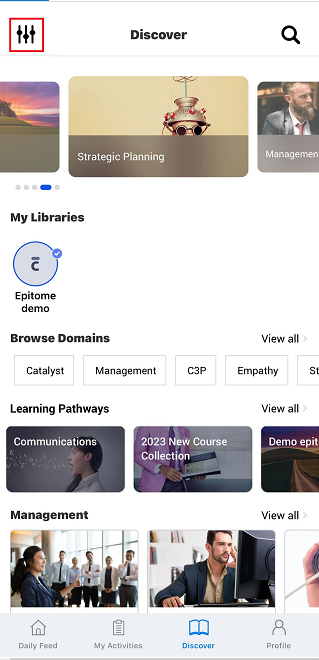
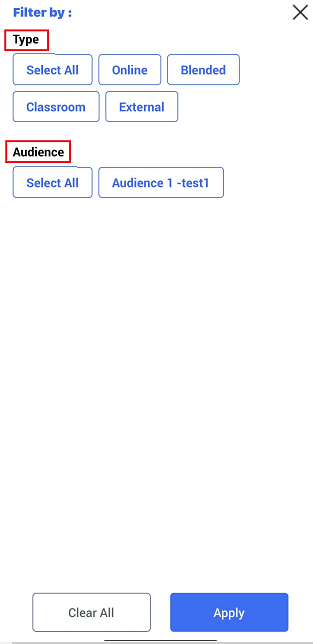
- To filter your view, click on the Filter icon on the top left screen, and users will be given available filtering options under "Type" and "Audience". Click on "Apply".
4. Starting and completing a course
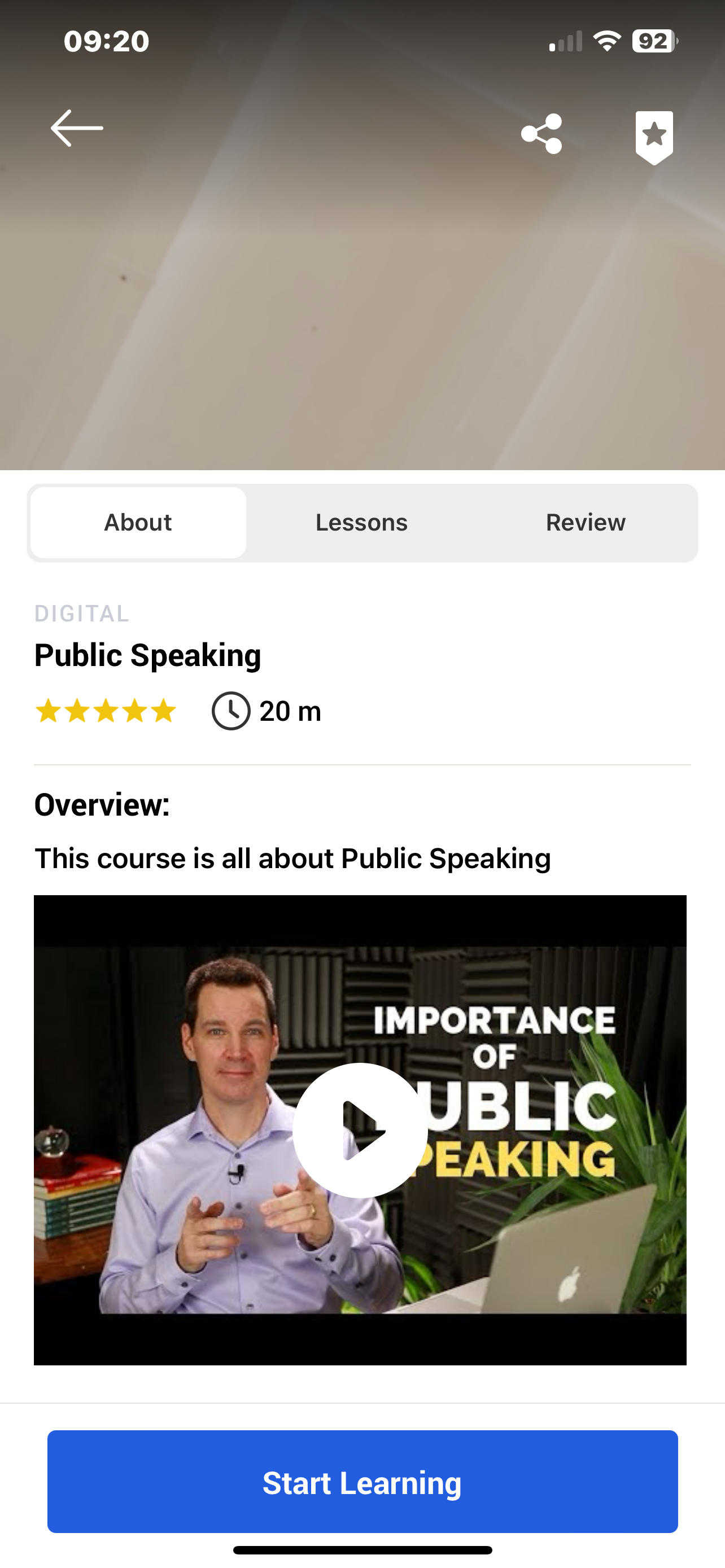
Select a course on the Discover page and click on the course icon. You will then be taken to the course page. The course page displays all the course information, including About (with thumbnail pictures and trailer videos, if available), Lessons (the navigable lesson list), and Review.
- Click on the Start Learning (or, if you already started but didn’t complete this course, Continue Learning) button to start learning.
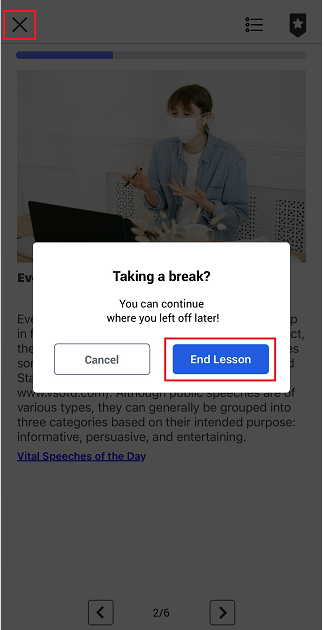
- If you wish to take a break, click on the Exit button in the top left corner and select End Lesson in the pop-up menu.
- Once you have reached the end of the course, the course completion page appears. You can choose either to retake the course or to complete it by giving a review.
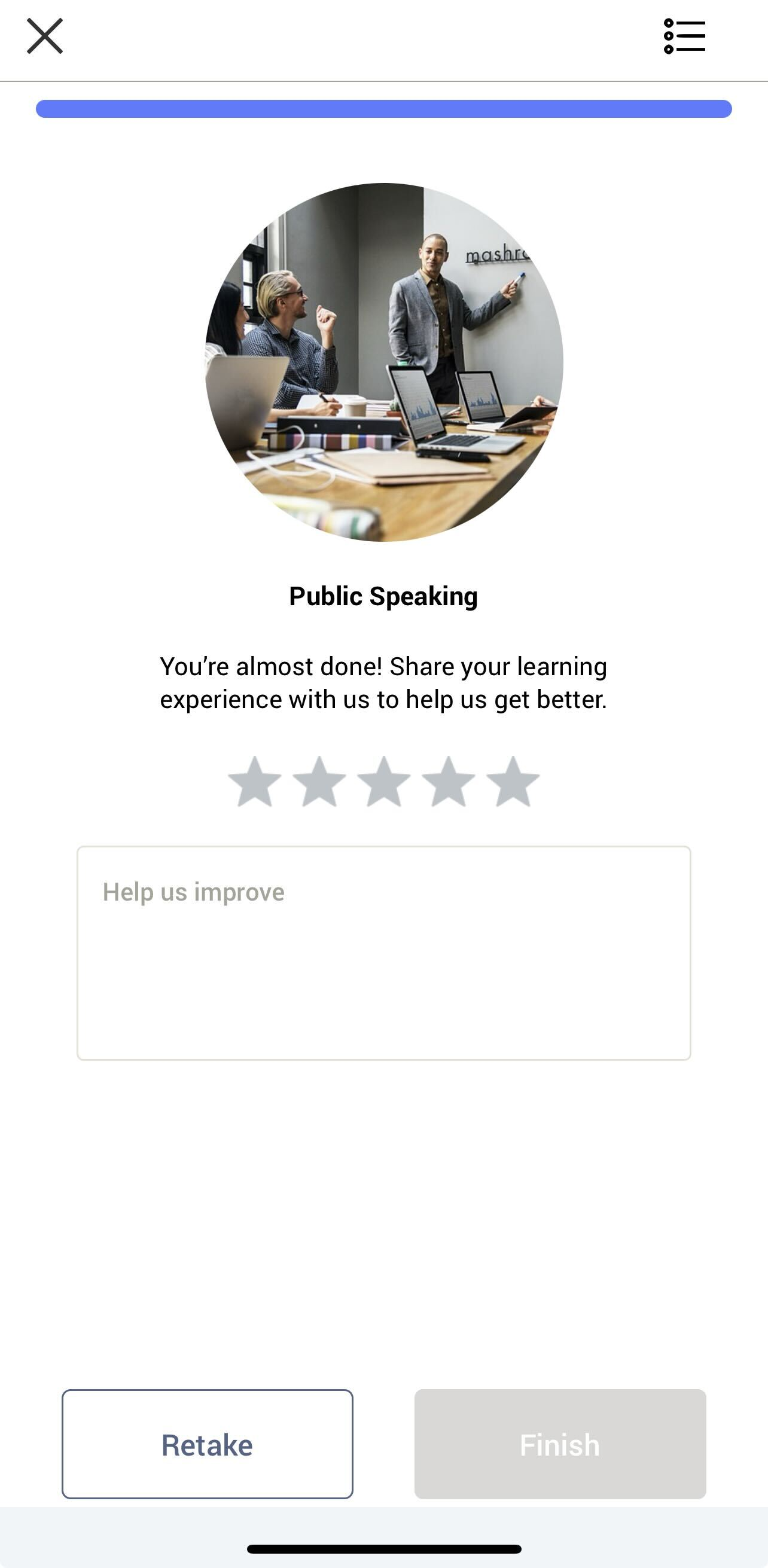
- On the Review page, give a star rating to the completed course and leave a detailed review if you wish so. You can choose to retake the course or to explore more courses, in which case you will be taken back to the Discover page.
Was this article helpful?
That’s Great!
Thank you for your feedback
Sorry! We couldn't be helpful
Thank you for your feedback
Feedback sent
We appreciate your effort and will try to fix the article